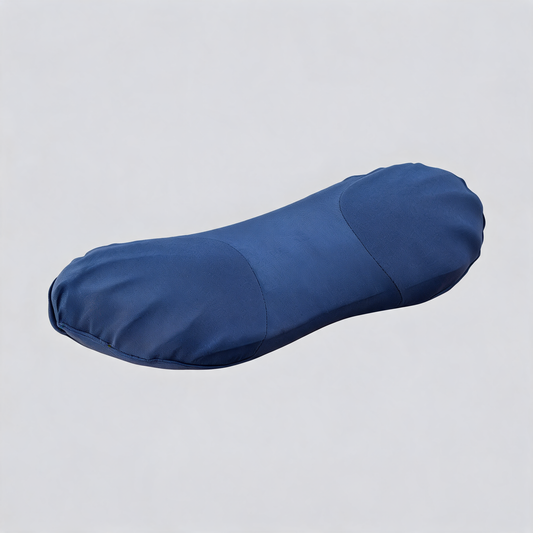
Work day Comfort & Ergonomic Support
-
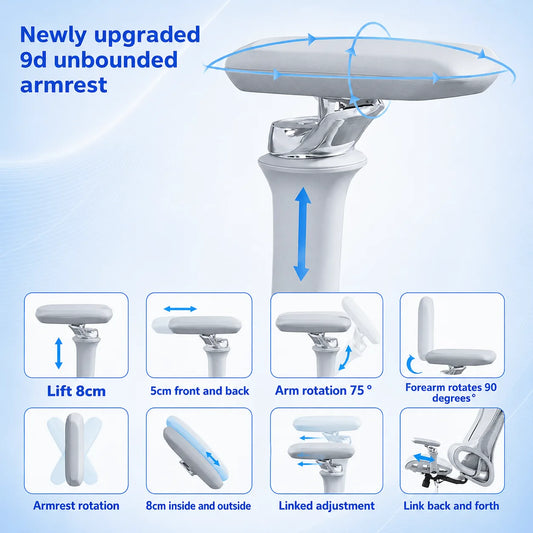
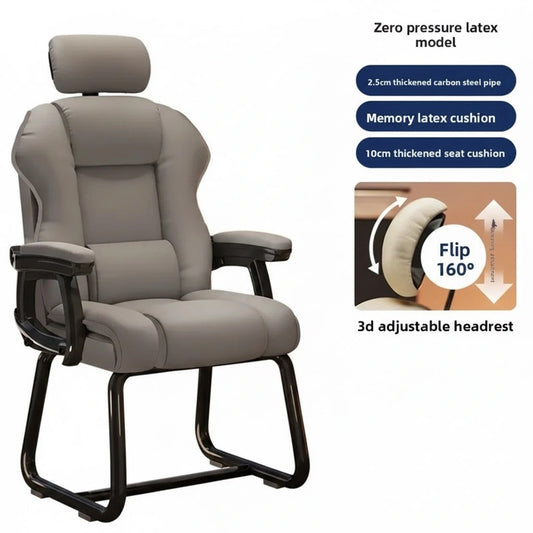
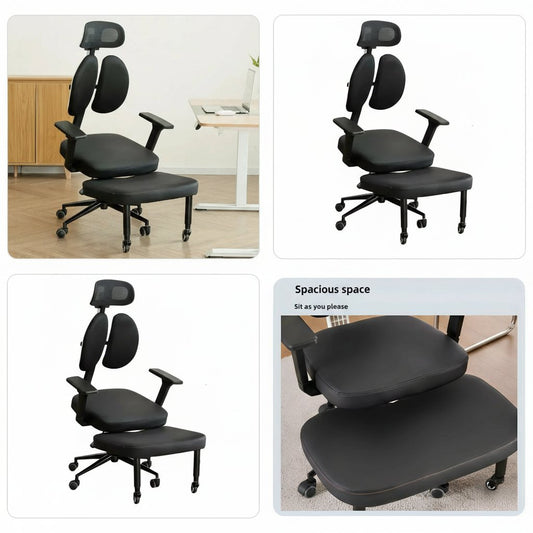
Home Office Chair with Ergonomic Comfort for Daily Support
Regular price $827Regular price$1,899Sale price $827Sale -
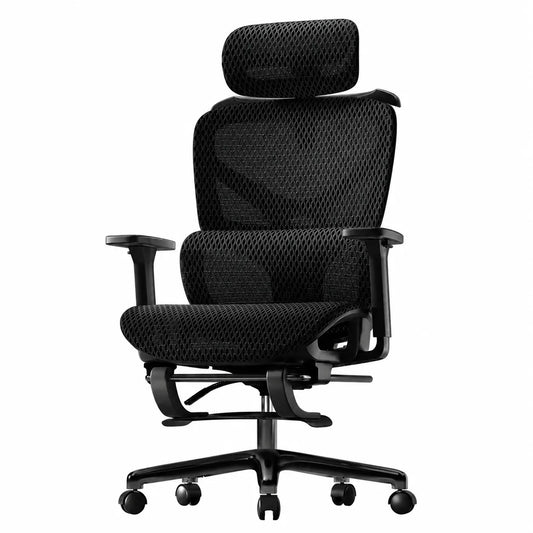
Comfortable Ergonomic Mesh Office Chair with Rolling Casters
Regular price $562.21Regular price$1,124Sale price $562.21Sale -
Ergonomic Mesh Office Chair for Comfortable Daily Support
Regular price $642.03Regular price$1,284Sale price $642.03Sale -
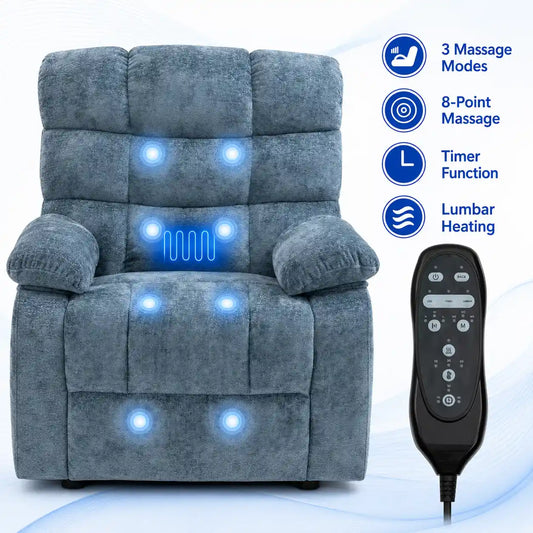
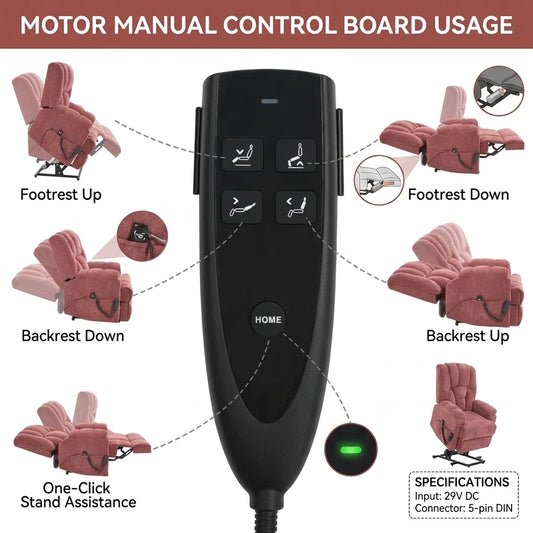
Heated Reclining Chair with Massage for Cozy Home Comfort
Regular price $950Regular price$1,949Sale price $950Sale -
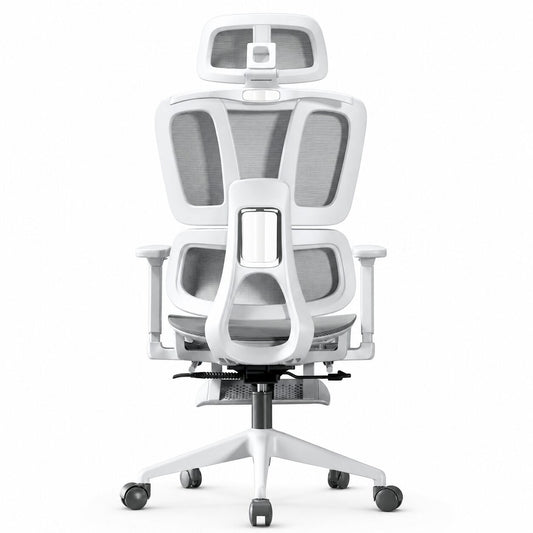
Ergonomic Mesh Office Chair with Adjustable Support
Regular price $750Regular price$1,800Sale price $750Sale -
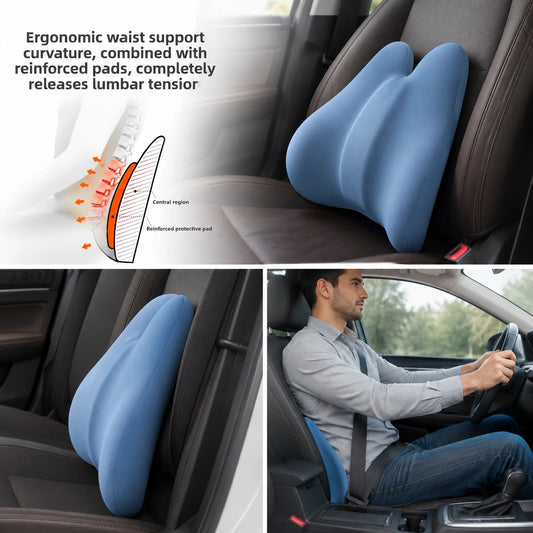
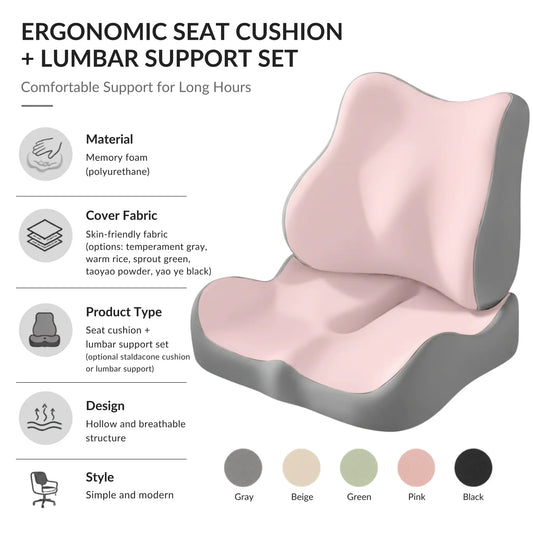
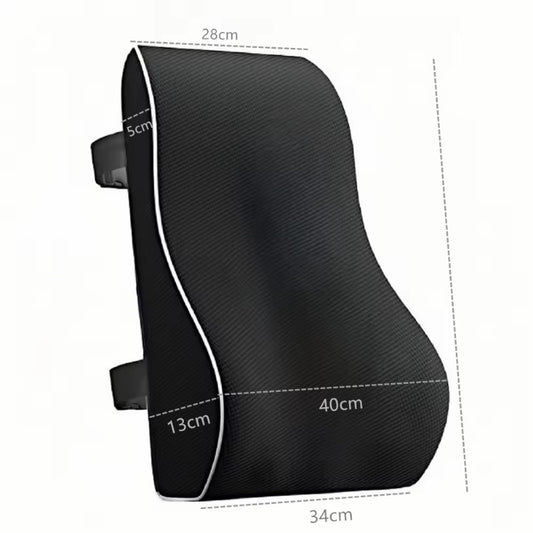
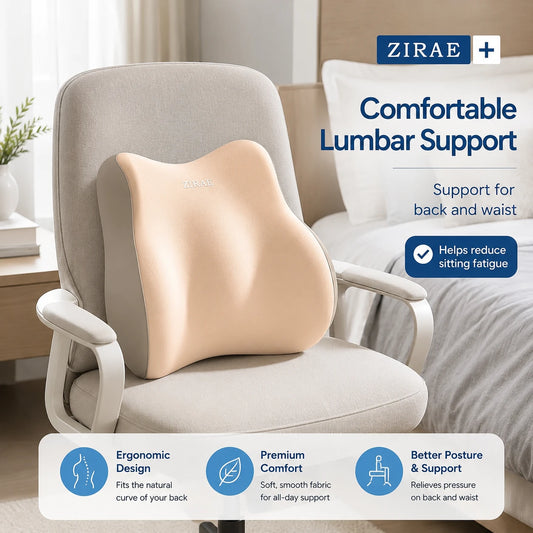
Adjustable Lumbar Support Cushion for Office Chair and Car
Regular price $80Regular price$179Sale price $80Sale -
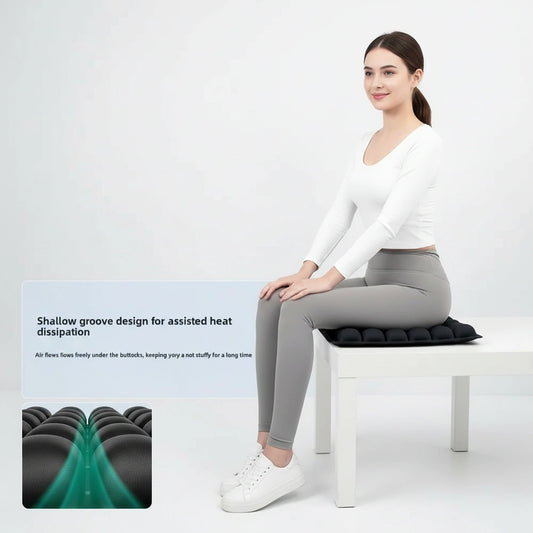
Air Pressure Relief Seat Cushion for Office Chair and Car
Regular price $29Regular price$69Sale price $29Sale -
Ergonomic Computer Chair for Home Office and Back Support
Regular price $560Regular price$1,122Sale price $560Sale -
Foam Lumbar Support Cushion for Office Chair and Back Relief
Regular price $31Regular price$79Sale price $31Sale -
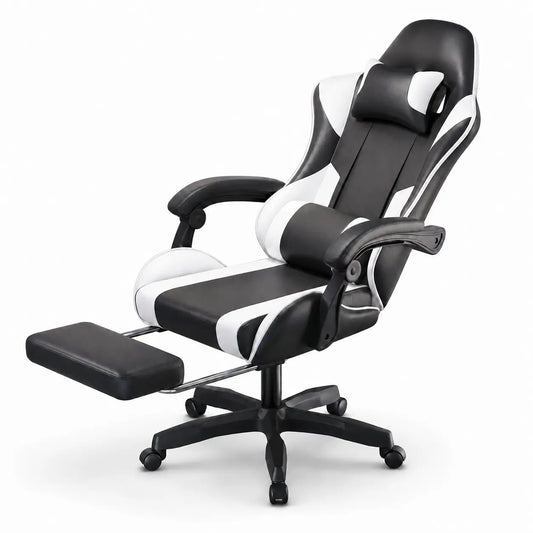
Ergonomic Office Gaming Chair with Recline & Neck Support
Regular price $785Regular price$1,598Sale price $785Sale -
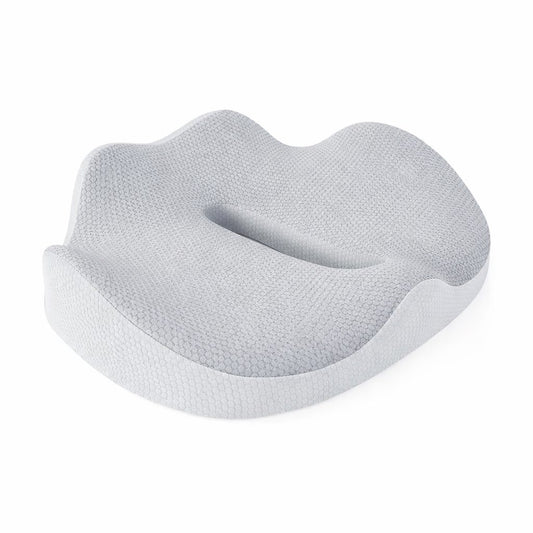
Memory Foam Seat Cushion for Office Chair Back Pain Relief
Regular price $27Regular price$79Sale price $27Sale -
Memory Foam Lumbar Cushion for Office Chair and Car Seat
Regular price $21Regular price$59Sale price $21Sale -
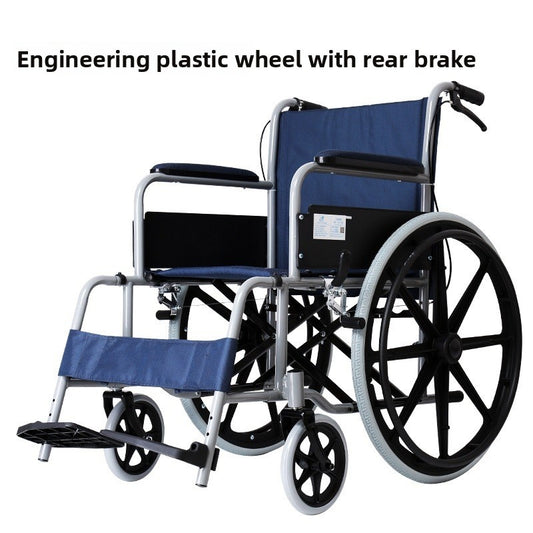
Folding Wheelchair with Brakes and Footrests for Seniors
Regular price $846Regular price$1,759Sale price $846Sale -
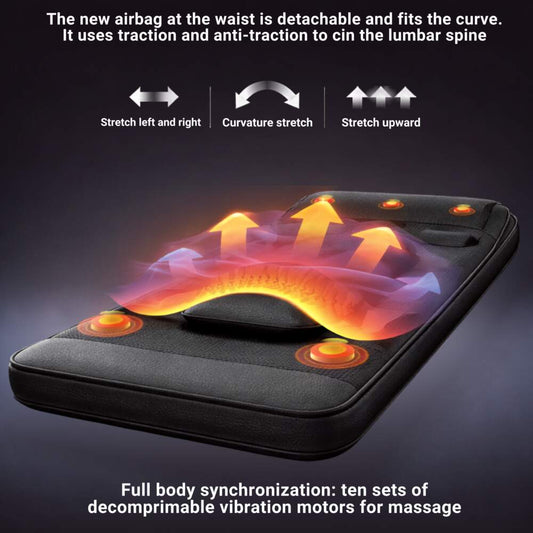
Folding Massage Chair with Remote Control for Full Body Rest
Regular price $502Regular price$1,007Sale price $502Sale -
Ergonomic Mesh Office Chair with Lumbar Support for Desk Use
Regular price $210Regular price$423Sale price $210Sale -
Electric Reclining Chair Power Recliner for Living Room Home
Regular price $974Regular price$2,100Sale price $974Sale -
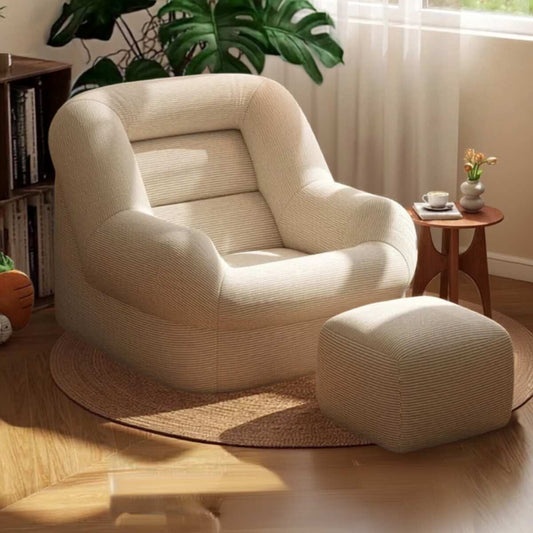
Reclining Sofa Lounge Chair for Living Room Comfort & Support
Regular price $25Regular price$54Sale price $25Sale -
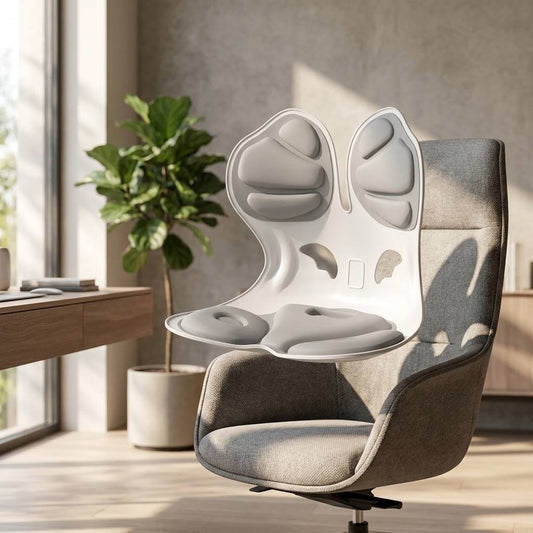
Ergonomic Posture Correction Chair Cushion for Office Use
Regular price $114Regular price$231Sale price $114Sale -
Memory Foam Back Cushion with Lumbar Support for Office Chair
Regular price $50Regular price$104Sale price $50Sale -
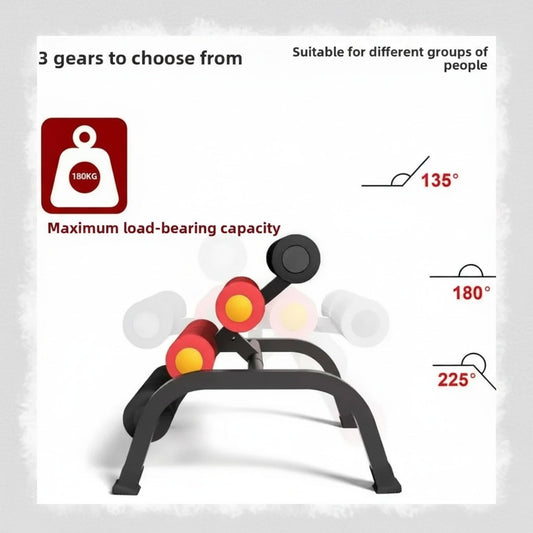
Multifunctional Yoga Stretching Chair for Flexible Workouts
Regular price $73Regular price$150Sale price $73Sale -
Ergonomic Adjustable Kneeling Chair for Home Posture Support
Regular price $1,044Regular price$2,150Sale price $1,044Sale -
Ergonomic PU Leather Swivel Gaming Chair for Home, Office
Regular price $669Regular price$1,400Sale price $669Sale -
Lumbar Support Office Chair Cushion & Latex Seat Cushion
Regular price $47Regular price$97Sale price $47Sale -
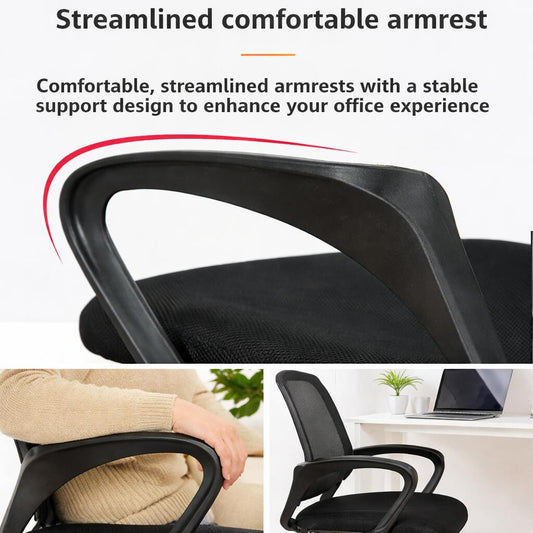
Ergonomic Adjustable Office Desk Chair with Lumbar Support
Regular price $696Regular price$1,500Sale price $696Sale -
Memory Foam Lumbar Pillow Office Chair & Car Back Support
Regular price $20Regular price$45Sale price $20Sale
For-work
For-work essentials can make daily routines more organized, comfortable, and productive. From ergonomic supports and desk accessories to storage tools and travel-friendly items, the right products can complement office, remote, and hybrid setups. Explore practical options designed to support focus and everyday convenience.
What Are For-Work Essentials?
For-work essentials are practical products designed to support organization, comfort, accessibility, and daily productivity. They may include ergonomic accessories, desk organizers, device stands, cable-management tools, seat cushions, footrests, and portable products for office, remote, or hybrid work.
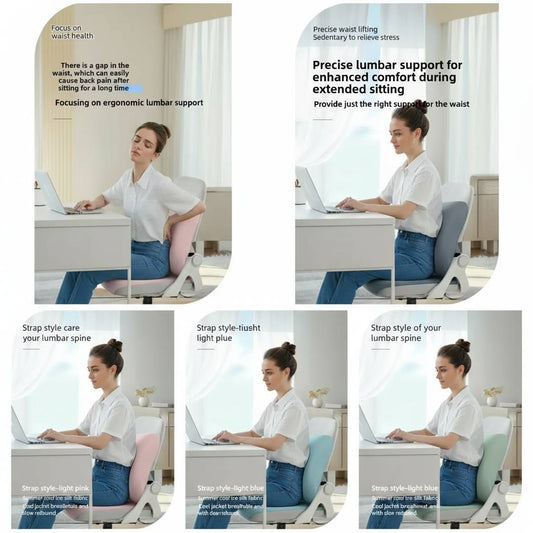
The right work essentials depend on your tasks, workspace, equipment, schedule, and individual comfort needs. Accessories should complement a properly arranged workstation rather than compensate for unsuitable furniture or prolonged sitting.
Common Types of Work Essentials
|
Work-essential category |
Common purpose |
|
Desk organizers |
Arrange office supplies and frequently used items |
|
Laptop stands |
Raise compatible laptops for improved screen positioning |
|
Monitor supports |
Adjust compatible displays to a suitable viewing height |
|
Seat cushions |
Add cushioning to compatible office chairs |
|
Lumbar-support cushions |
Provide support behind the lower back |
|
Footrests |
Offer a stable surface for supporting the feet |
|
Wrist supports |
Add cushioning near keyboards or mouse areas |
|
Cable organizers |
Keep device and charging cables arranged |
|
Device stands |
Hold compatible phones or tablets |
|
Portable organizers |
Carry work supplies between locations |
Essential Products for a Workstation
A practical setup may include:
-
A supportive, adjustable chair
-
A desk at a suitable working height
-
A properly positioned monitor or laptop
-
A separate keyboard and mouse when needed
-
A stable footrest if the feet do not rest comfortably
-
Organized charging and computer cables
-
Storage for frequently used supplies
-
Appropriate task lighting
-
A refillable water bottle
-
A plan for regular movement breaks
Not every workspace needs every accessory. Start with the products that address specific issues in your daily routine.
For-Work Essentials for Remote and Hybrid Workers
People working across home, office, and shared spaces may benefit from portable accessories such as:
-
Compact laptop stands
-
Cable and charger organizers
-
Protective device sleeves
-
Document folders
-
Portable mouse pads
-
Small desk organizers
-
Lightweight seat or lumbar cushions
-
Travel-friendly personal care items
Confirm product dimensions and compatibility before carrying accessories between locations.
How to Choose Work Accessories
Before purchasing, consider:
-
Desk and chair dimensions
-
Device size and weight
-
Product adjustability
-
Stability during use
-
Material and comfort
-
Storage and portability
-
Cleaning requirements
-
Assembly instructions
-
Weight capacity and safety warnings
No product can guarantee better posture, eliminate pain, or improve productivity for every user. Persistent discomfort, numbness, or pain should be discussed with an appropriate healthcare professional.
Explore Work Accessories for Everyday Productivity
Work accessories can make daily tasks more organized, accessible, and comfortable. Whether you work in a traditional office, from home, or across multiple locations, practical products can help manage devices, documents, cables, and frequently used supplies.
The best work accessories support a specific need without overcrowding the desk or interrupting natural movement.
Work Accessories by Everyday Need
|
Work need |
Helpful accessories |
|
Desk organization |
Supply holders, document trays, and drawer organizers |
|
Screen positioning |
Laptop stands and compatible monitor supports |
|
Device use |
External keyboards, mouse accessories, and device stands |
|
Cable management |
Cable clips, sleeves, boxes, and charging organizers |
|
Sitting comfort |
Seat cushions, lumbar supports, and footrests |
|
Task planning |
Notebooks, planners, whiteboards, and desktop calendars |
|
Portable work |
Laptop sleeves, cable pouches, and document folders |
|
Video meetings |
Device stands, lighting accessories, and headset organizers |
|
Hydration |
Refillable bottles and stable drink holders |
Organize Frequently Used Items
Keep high-use products within comfortable reach and move less frequently used items into drawers, shelves, or storage containers. A simple desk system may include:
-
A tray for current documents
-
A holder for pens and small supplies
-
A cable organizer for chargers
-
A stand for a compatible phone or tablet
-
A drawer divider for smaller items
-
A separate area for personal belongings
-
A bin for items that need to be filed or returned
Avoid storing heavy objects on unstable shelves or stacking items where they may fall.
Accessories for Focused Work Routines
Accessories cannot create productivity on their own, but they can reduce avoidable interruptions. A stable device stand may make reference material easier to view, while a cable organizer can prevent cords from tangling across the work surface.
Other practical habits include:
-
Keeping the desk clear enough for the current task
-
Silencing unnecessary device notifications
-
Grouping similar tasks together
-
Keeping water within safe reach
-
Taking regular movement and vision breaks
-
Returning items to assigned storage areas
Choosing Work Accessories
Before purchasing, review:
-
Product dimensions
-
Desk and chair compatibility
-
Device size and weight
-
Adjustability and stability
-
Weight capacity
-
Material and construction
-
Assembly requirements
-
Portability and storage
-
Cleaning instructions
Products described as “universal” may not fit every desk, device, chair, or workspace.
Essential Products for Working From Home
The right work-from-home products can create a more organized, comfortable, and functional workspace. A home office does not need to be large or expensive, but it should support your regular tasks, devices, schedule, and available space.
Begin with essential furniture and technology, then add accessories that solve specific problems in your remote-work routine.
Work-From-Home Essentials
|
Product category |
Common purpose |
|
Desk or work surface |
Provides a stable area for devices and daily tasks |
|
Adjustable chair |
Supports different sitting positions and workstation heights |
|
Laptop or desktop computer |
Provides access to required work applications |
|
Monitor |
Expands the viewing area for documents and multiple applications |
|
Keyboard and mouse |
Support computer input and navigation |
|
Laptop stand |
Raises a compatible laptop for improved screen positioning |
|
Task lighting |
Provides focused light for the work area |
|
Headset |
Supports calls and virtual meetings |
|
Cable organizers |
Keep power and device cables arranged |
|
Footrest |
Provides a stable surface when the feet do not rest comfortably |
|
Seat or lumbar cushion |
Adds support or cushioning to compatible chairs |
Choosing a Monitor for Working From Home
The best budget monitor for a work-from-home setup depends on your tasks, desk size, computer compatibility, and required screen space. Consider:
-
Screen dimensions and resolution
-
Available desk space
-
Height and tilt adjustment
-
Port compatibility
-
Text clarity
-
Webcam or speaker requirements
-
Compatibility with a monitor arm
-
Warranty and support
Position the screen so you can view it comfortably without repeatedly leaning forward or turning your neck.
Choosing a Mouse and Keyboard
A suitable mouse should fit your hand, work with your preferred grip, and connect reliably to your computer. When comparing a wired or wireless mouse for work, review device compatibility, size, button placement, battery requirements, and surface tracking.
The keyboard and mouse should be positioned so they are easy to reach without excessive stretching.
Products for an Organized Home Office
A simple setup may include:
-
A document tray for active paperwork
-
A cable organizer for chargers and power cords
-
A stand for a compatible phone or tablet
-
Drawer organizers for small supplies
-
A headset hook or holder
-
A protective mat where appropriate
-
A refillable water bottle
-
Storage for products used less frequently
Build the Workspace Around Your Routine
Choose a location with suitable lighting, ventilation, power access, and internet connectivity. Arrange frequently used items within comfortable reach, keep walkways clear, and take regular movement and screen breaks.
Ergonomic Accessories for Comfortable Workspaces
Ergonomic accessories are products designed to help arrange a workspace around the user’s tasks, body dimensions, and equipment. Options such as laptop stands, footrests, seat cushions, lumbar supports, and wrist rests may add comfort when selected and positioned correctly.
An accessory cannot make an unsuitable workstation fully ergonomic by itself. Begin with the chair, desk, monitor, keyboard, and mouse, then add products that address specific needs.
Common Ergonomic Accessories
|
Accessory |
Common purpose |
What to consider |
|
Laptop stand |
Raises a compatible laptop screen |
Height, stability, device size, and use of an external keyboard |
|
Monitor stand or arm |
Adjusts compatible screen position |
Weight limit, mounting method, and desk strength |
|
Seat cushion |
Adds cushioning to a compatible chair |
Thickness, firmness, stability, and seat height |
|
Lumbar-support cushion |
Provides support behind the lower back |
Shape, placement, and chair compatibility |
|
Footrest |
Supports the feet when they do not rest comfortably |
Height, angle, surface grip, and available legroom |
|
Wrist rest |
Provides a padded surface near a keyboard or mouse |
Height, firmness, and hand position |
|
Ergonomic mouse |
Offers an alternative shape or hand position |
Hand size, grip, buttons, and device compatibility |
|
Document holder |
Positions reference material near the screen |
Stability, viewing angle, and desk space |
|
Anti-fatigue mat |
Provides a cushioned surface for standing tasks |
Thickness, edge design, and floor grip |
How to Arrange an Ergonomic Workspace
A practical workstation setup may include:
-
A chair adjusted so the feet are supported
-
A work surface that allows relaxed shoulders
-
A screen positioned directly in front of the user
-
A keyboard and mouse placed within easy reach
-
Frequently used items kept nearby
-
Enough legroom beneath the desk
-
Lighting that minimizes glare
-
Regular changes in position and movement breaks
There is no single “perfect posture” that should be held all day. Comfort often depends on having support while changing positions regularly.
Choosing Ergonomic Work Accessories
Before purchasing, consider:
-
Your body dimensions and comfort preferences
-
Chair, desk, and device measurements
-
Product height and adjustability
-
Stability and non-slip features
-
Weight capacity
-
Material and firmness
-
Portability and storage
-
Assembly and care requirements
A thick seat cushion, for example, may raise the body enough to change keyboard height, monitor position, or foot contact with the floor. Assess the workstation as a complete setup.
Use Accessories as Part of a Healthy Work Routine
Ergonomic products do not guarantee better posture or prevent pain. Alternate tasks when possible, look away from the screen periodically, and take regular breaks to stand and move.
Seat Cushions and Lumbar Supports for Work Chairs
Seat cushions and lumbar supports can add comfort and support to compatible office chairs during desk work. A seat cushion changes the sitting surface, while a lumbar cushion is positioned behind the lower back. Some people use both, but each product should be selected according to the chair, body dimensions, and workstation setup.
These accessories cannot correct every chair or guarantee relief from back, hip, or tailbone pain. Persistent discomfort should be evaluated by a qualified healthcare professional.
Seat Cushions vs. Lumbar Supports
|
Feature |
Seat cushion |
Lumbar-support cushion |
|
Placement |
On the chair seat |
Behind the lower back |
|
Main function |
Adds cushioning or changes pressure distribution |
Fills space between the lower back and chair |
|
Common materials |
Memory foam, gel, foam, or layered materials |
Foam, mesh, inflatable, or contoured materials |
|
Fit considerations |
Seat depth, width, thickness, and stability |
Backrest shape, height, curve, and attachment |
|
Possible adjustment needed |
Chair height, foot support, and desk position |
Backrest angle and cushion height |
Choosing a Seat Cushion for a Work Chair
Before purchasing, compare:
-
Chair-seat width and depth
-
Cushion dimensions and thickness
-
Foam firmness and density
-
Flat or contoured shape
-
Non-slip base or secure straps
-
Cover material and breathability
-
Removable and washable cover
-
Product weight capacity
-
Carrying handle or portability
A thick cushion raises the body and may change the relationship between the chair, desk, keyboard, monitor, and floor. Readjust the workstation after adding one.
Choosing a Lumbar-Support Cushion
A lumbar cushion should fit the chair and remain at the intended height without sliding. Look for:
-
Adjustable attachment straps
-
A contour that suits the chair and user
-
Appropriate firmness
-
Breathable or washable cover materials
-
Enough space to sit fully back in the chair
-
Compatibility with the backrest design
A cushion that is too thick may push the body forward and reduce support from the chair.
Setting Up the Chair After Installation
After adding a seat or lumbar cushion:
-
Confirm that the chair remains stable.
-
Adjust the seat height if necessary.
-
Keep both feet supported by the floor or a stable footrest.
-
Check that the seat edge does not press behind the knees.
-
Reposition the monitor, keyboard, and mouse when needed.
-
Keep the shoulders relaxed and frequently used items within reach.
-
Change position and take regular movement breaks.
Care and Replacement
Follow the manufacturer’s cleaning instructions. Remove and wash the cover when permitted, and never wash the foam insert unless specifically directed. Replace cushions that become permanently flattened, torn, unstable, or unable to maintain their intended shape.
Desk Accessories for Organized Work Routines
Desk accessories can help create a cleaner, more functional workspace by giving documents, devices, cables, and office supplies designated places. Whether you work in a home office, corporate setting, or shared space, practical organization can reduce clutter and make frequently used items easier to find.
Select accessories based on your daily tasks, desk dimensions, storage needs, and device compatibility.
Useful Desk Accessories
|
Desk accessory |
Common purpose |
|
Pen and supply holder |
Organizes writing tools and small office items |
|
Document tray |
Separates active, completed, and incoming paperwork |
|
Drawer organizer |
Divides small supplies inside desk drawers |
|
Cable-management clips |
Keep charging and computer cables arranged |
|
Laptop stand |
Raises a compatible laptop screen |
|
Monitor stand |
Supports a compatible display at an adjusted height |
|
Phone or tablet stand |
Holds a compatible device for convenient viewing |
|
Headset holder |
Provides a designated place for headphones |
|
Desk mat |
Defines and helps protect part of the work surface |
|
Storage box |
Holds supplies used less frequently |
|
Label holder |
Identifies files, drawers, or stored items |
Create a Simple Desk-Organization System
An organized desk does not need numerous products. Start with a few clear zones:
-
Primary work zone: Keep the keyboard, mouse, notebook, or active task here.
-
Supply zone: Store pens, clips, and other frequently used items together.
-
Document zone: Separate incoming, active, and completed paperwork.
-
Device zone: Position chargers, stands, and connected devices safely.
-
Storage zone: Move infrequently used supplies into drawers or containers.
-
Personal zone: Designate a small space for a water bottle or personal items.
Return items to their assigned places at the end of the workday.
Cable Management for a Cleaner Desk
Cable clips, sleeves, ties, trays, and boxes can help prevent cords from spreading across the work surface. Keep cables away from walkways, chair wheels, heat sources, liquids, and sharp edges.
Do not overload electrical outlets or tightly bend power cables. Replace cords that are frayed, cracked, unusually hot, or otherwise damaged.
Choosing Desk Accessories
Before purchasing, check:
-
Desk width, depth, and thickness
-
Available drawer or shelf space
-
Product dimensions and capacity
-
Device size and weight
-
Clamp, adhesive, or freestanding installation
-
Surface compatibility
-
Weight limits
-
Cleaning and maintenance requirements
Adhesive and clamp-mounted products may not suit every desktop finish or edge design.
Maintain an Organized Work Routine
Review the desk weekly and remove outdated papers, empty packaging, and items that belong elsewhere. Keep frequently used products accessible while storing occasional-use items away from the main work surface.
Laptop Stands and Monitor Supports for Work
Laptop stands and monitor supports can help position screens for more comfortable viewing in office, remote, and hybrid workspaces. These accessories may raise, tilt, rotate, or reposition compatible devices while creating additional room on the desk.
The right support must match the device’s dimensions, weight, mounting pattern, and ventilation requirements. It should also remain stable throughout normal use.
Types of Screen Supports
|
Product type |
Common purpose |
Compatibility factors |
|
Fixed laptop stand |
Raises a laptop to a set height |
Laptop width, weight, and ventilation |
|
Adjustable laptop stand |
Changes screen height or angle |
Adjustment range, hinges, and stability |
|
Foldable laptop stand |
Provides a portable support option |
Folded size, weight, and locking mechanism |
|
Monitor riser |
Raises a monitor using a desktop platform |
Base dimensions and weight capacity |
|
Monitor arm |
Allows broader height and angle adjustment |
VESA pattern, monitor weight, and desk mounting |
|
Dual-monitor arm |
Supports two compatible displays |
Combined weight, screen size, and desk strength |
|
Wall-mounted monitor support |
Positions a display away from the desk |
Wall structure, VESA pattern, and installation hardware |
Choosing a Laptop Stand
Before purchasing, review:
-
Laptop screen size and overall dimensions
-
Device weight
-
Stand weight capacity
-
Height and angle adjustments
-
Base grip and stability
-
Ventilation and airflow
-
Foldability and portability
-
Space for cables and connected devices
-
Material and construction
If a stand raises the laptop keyboard above a comfortable typing position, use a compatible external keyboard and mouse for longer work sessions.
Choosing a Monitor Support
Monitor stands and arms should safely support the display without wobbling, tilting unexpectedly, or damaging the desk. Check:
-
Monitor weight without its original base
-
Screen-size range
-
VESA mounting pattern
-
Desk thickness and edge shape
-
Clamp, grommet, wall, or freestanding installation
-
Height, tilt, swivel, and rotation range
-
Cable-management features
-
Supplied hardware and installation requirements
Do not attach a clamp-mounted arm to glass, weak particleboard, hollow furniture, or another unsuitable surface unless the manufacturer specifically permits it.
Screen Positioning for Work
Position the primary screen directly in front of the user and at a distance that allows comfortable reading. The top of the visible screen is often placed around eye level or slightly below, but individual vision needs and equipment may require adjustments.
Keyboards and Mouse Accessories for Daily Tasks
Keyboards, mice, and related accessories support everyday tasks such as typing, navigating documents, attending virtual meetings, and working across multiple applications. The right setup depends on your hand size, work style, available desk space, device compatibility, and personal preferences.
No single keyboard or mouse is best for every user. Compare size, shape, connection type, controls, and adjustability before choosing products for work.
Keyboard and Mouse Products
|
Product |
Common purpose |
What to consider |
|
Full-size keyboard |
Includes letters, function keys, arrows, and a number pad |
Desk space and typing needs |
|
Compact keyboard |
Reduces the keyboard’s overall footprint |
Required keys and layout familiarity |
|
Split keyboard |
Separates or angles typing sections |
Learning curve, adjustability, and desk space |
|
Standard mouse |
Supports general navigation and daily office tasks |
Hand size, grip, buttons, and tracking |
|
Vertical mouse |
Offers an alternative hand position |
Shape, size, adjustment period, and handedness |
|
Trackball mouse |
Moves the pointer using a stationary ball |
Accuracy, cleaning, and user preference |
|
Mouse pad |
Provides a consistent tracking surface |
Dimensions, grip, and desk space |
|
Wrist support |
Adds padding near a keyboard or mouse |
Height, firmness, and placement |
|
Keyboard tray |
Positions compatible input devices below or under a desk |
Desk fit, stability, and leg clearance |
Choosing a Mouse for Work
When comparing a wired or wireless mouse for work, review:
-
Hand size and preferred grip
-
Right-handed, left-handed, or ambidextrous design
-
Button position and customization
-
Pointer sensitivity
-
Battery type and expected runtime
-
Bluetooth or USB receiver requirements
-
Operating-system compatibility
-
Surface-tracking performance
-
Product weight and portability
A wireless mouse may reduce desk cables, while a wired model avoids charging or battery replacement. The better option depends on your setup.
Choosing a Keyboard for Daily Tasks
Consider how often you type, whether you use number-entry tasks, and how much desk space is available. Compare:
-
Full-size, compact, or split layout
-
Key spacing and travel
-
Keyboard angle and height
-
Wired or wireless connection
-
Device and operating-system compatibility
-
Battery or charging requirements
-
Backlighting when needed
-
Cleaning and maintenance instructions
Positioning the Keyboard and Mouse
Place the keyboard and mouse close enough to use without repeatedly reaching forward. Keep the mouse beside the keyboard and allow room for relaxed movement.
A wrist rest should support the heel or palm area during pauses rather than forcing the wrists upward while typing. Change position regularly and take brief movement breaks during extended computer work.
FAQs
What products are essential for working from home?
Useful essentials may include a supportive chair, stable desk, monitor or laptop stand, keyboard, mouse, task lighting, cable organizers, and appropriate storage.
How do I choose ergonomic accessories for work?
Choose ergonomic accessories based on your body dimensions, workspace measurements, device compatibility, adjustability, stability, and individual comfort needs.
Are seat cushions suitable for office chairs?
A seat cushion may add comfort when it fits securely and does not negatively affect chair height, foot support, desk position, or sitting stability.
What should I consider when buying a mouse for work?
Consider hand size, grip style, wired or wireless connectivity, button placement, device compatibility, battery requirements, and desk space.
How can I keep my workspace organized?
Use designated zones, document trays, drawer dividers, cable-management tools, and storage containers while keeping frequently used items within comfortable reach.